Set up a Fireblocks API Key
Last updated: October 10, 2024
Fireblocks permits API access by setting up an API user. The steps below guide you through what's required to set a new API user up properly for Liquifi to interact with.
Step 1: Request required setup items to use for your Fireblocks API user key creation
CSR File: Your Liquifi onboarding manager will provide you the CSR file to use. When creating the API Key user in Fireblocks, you will need to upload the provided CSR file in Fireblocks to create the API user.
Liquifi Factory Contract address: Your Liquifi onboarding manager will also need to provide you the current Liquifi factory contract address according to your network.
Step 2: Create the API user with the Liquifi CSR file
In this step, you will need to create a new API user key in Fireblocks and upload the CSR file from the step above.
Create an API user on Fireblocks (video walkthrough):
API user parameters:
Name:
Liquifi API KeyRole:
Editor(this is the lowest level of access required for sufficient actions to be permitted via Liquifi)CSR File: Request from your onboarding manager
Step 3: Set up TAP for API Key user
After creating the API user, you'll need to set up a few transaction policies (TAPs) for the newly created API Key user. These TAP policies give the least amount of access needed in order for the API key to perform the necessary functions.
Rule #1: Contract Call (video walkthrough)
Type:
Contract callSource: Fireblocks vault being used for Liquifi
Destination:
Whitelisted addresses onlyContract call methods:
AnyInitiated by:
Liquifi API key(your newly created API user)Designated signer: Any real user within your Fireblocks account (i.e., not the API user)
Asset:
AnyAction:
Approved by:TBD based on customer preference
Rule #2: Transfer (video walkthrough)
Type:
TransferSource: Fireblocks vault being used for Liquifi
Destination:
Whitelisted addresses onlyInitiated by:
Liquifi API key(your newly created API user)Designated signer: Any real user within your Fireblocks account (i.e., not the API user)
Asset:
Anyandno minimum amountAction:
Approved by:TBD based on customer preference
Publish TAP rules (video walkthrough)
Step 4: Allowlist the Liquifi contract addresses
Next, you will need to explicitly allowlist Liquifi's smart contract addresses.
Allowlist Factory Contract (*Only required for new accounts) (video walkthrough):
Whitelisted wallet type:
ContractName:
Liquifi Factory ContractGas Token:
Based on networkLiquifi Factory Contract Address: Must be requested from your onboarding manager based on your token's network
Allowlist Vesting Contract (video walkthrough):
NEW ACCOUNTS: If you're setting up a new account, you must complete two steps before you have an escrow address generated that you can allowlist:
Addresses to allowlist
Liquifi Escrow Address
Type:
ContractName:
Liquifi Escrow Contract AddressAdd address
Select correct gas token for the network
Address:
Escrow contract address from within your Liquifi
Liquifi Distributing Token Address
Type:
ExternalName:
Liquifi Distribution Token AddressAdd Address
Select the token that’s being distributed via Liquifi
Address:
Escrow contract address from within Liquifi
Step 5: Share your API key credentials
In order to complete the Fireblocks account set up process, you must provide the following information for our technical team to set up within your account. Please share these credentials via a secure note (such as 1Password) or a private DM to your onboarding manager. Do not post your API key credentials in a group or public channel.
Fireblocks API Key
You can copy the API key from from the API user profile in the Users page of your Fireblocks account
Fireblocks Vault URL
We require this in order to identify the vault ID.
This must be the vault that will contain the vesting tokens.
You can identify this by navigating to the Accounts page in your Fireblocks account and copying the URL (e.g., The Fireblocks URL https://console.fireblocks.io/v2/accounts/vault/19 identifies that the vault ID is
19.
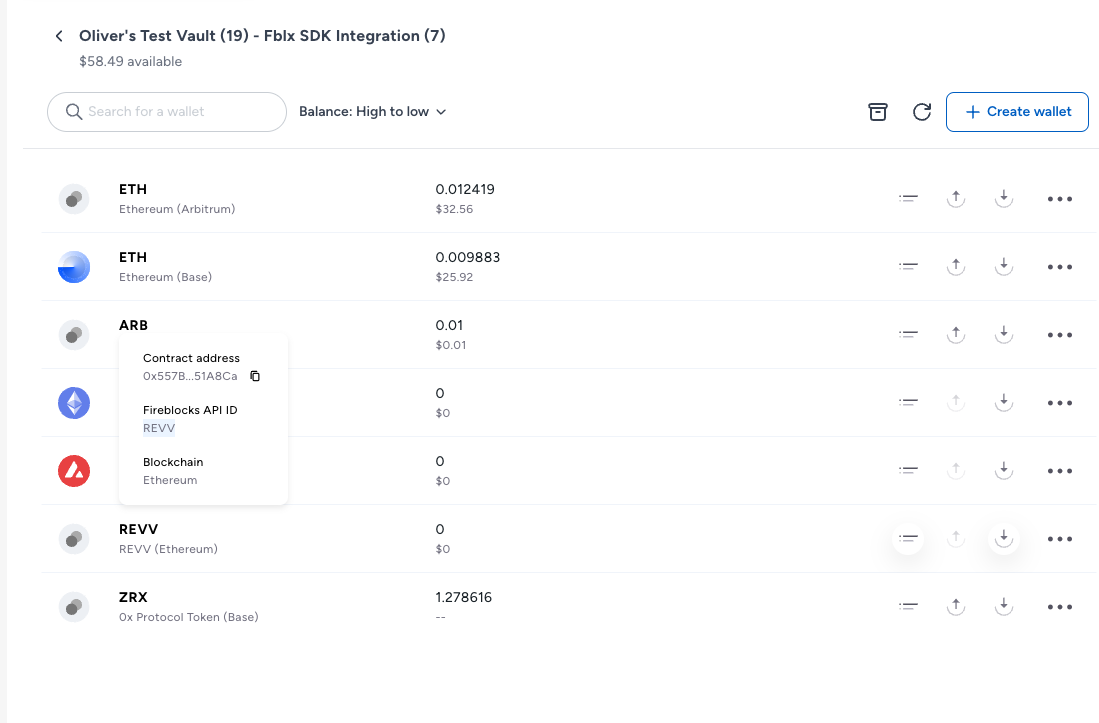
Fireblocks API ID
To find this, navigate to your vault's list of tokens and hover over the token you plan to distribute via Liquifi to view a pop-up screen.
Please copy and share the ID noted there
See screenshot below for an example:
NEXT STEPS: Once you complete the above steps, Liquifi's technical team will set up your API key credentials within your account and notify you when to proceed with your account setup.
If you need immediate assistance, please contact our support team directly at support@liquifi.finance
If you don't see what you're looking for in our support documentation, you can request a resource to be made by our support team using this form.