How do I approve or reject a stakeholder's wallet change request?
Last updated: April 29, 2025
How to review a stakeholder's wallet address change
Stakeholders can now request wallet address changes directly within the Liquifi app. Requests must be approved by an admin before any address changes are made.
When a stakeholder submits a wallet address change, you'll receive an email notification. Click View the request on Liquifi button in the email to go to the request directly.
If you didn't receive the email or prefer to check manually, you can also review wallet address change requests in two ways:
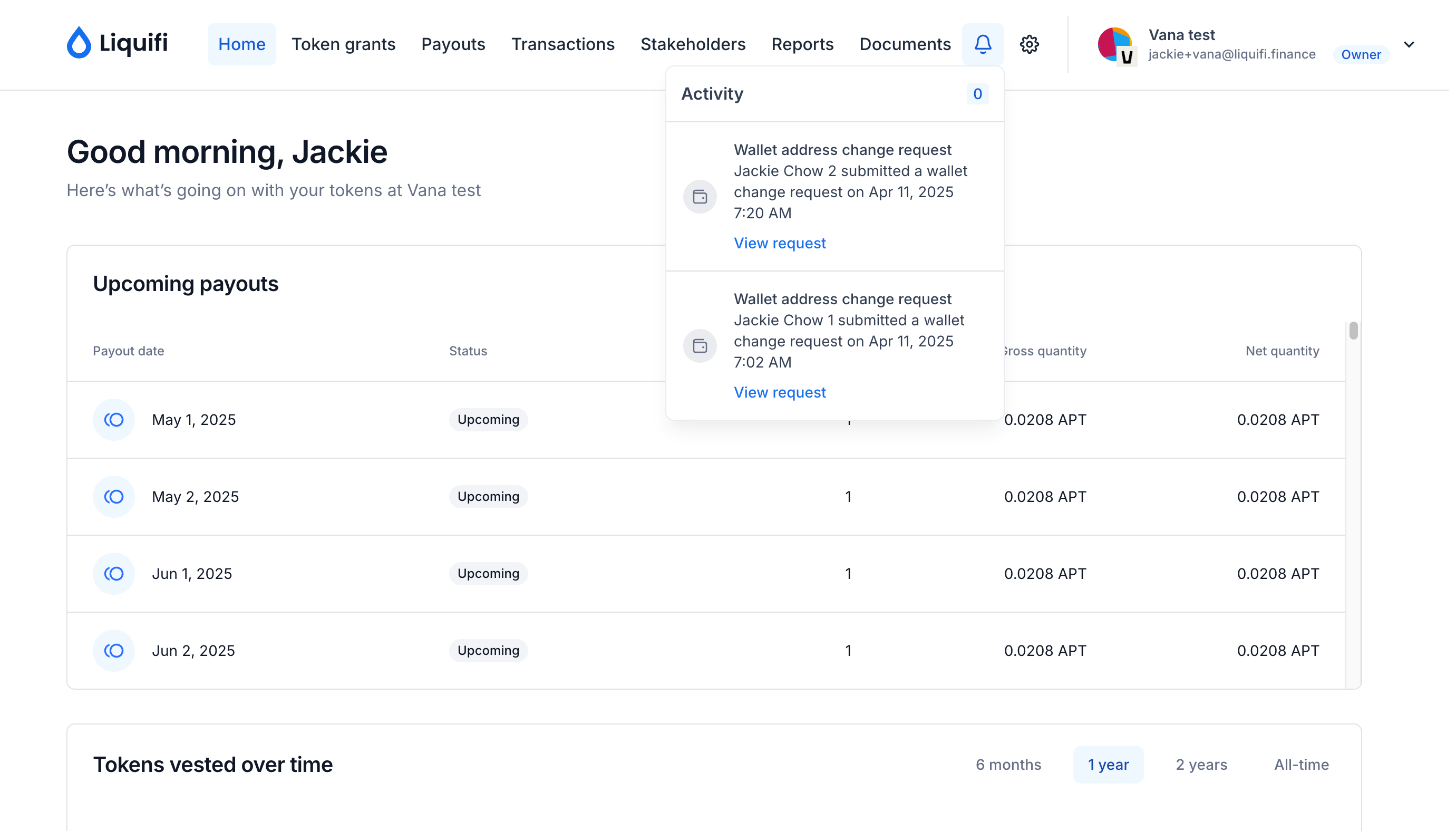
Activity feed: Click the 🔔 bell icon in the top right corner of the main navigation. A red dot will appear when there's a new request or notification pending your review.
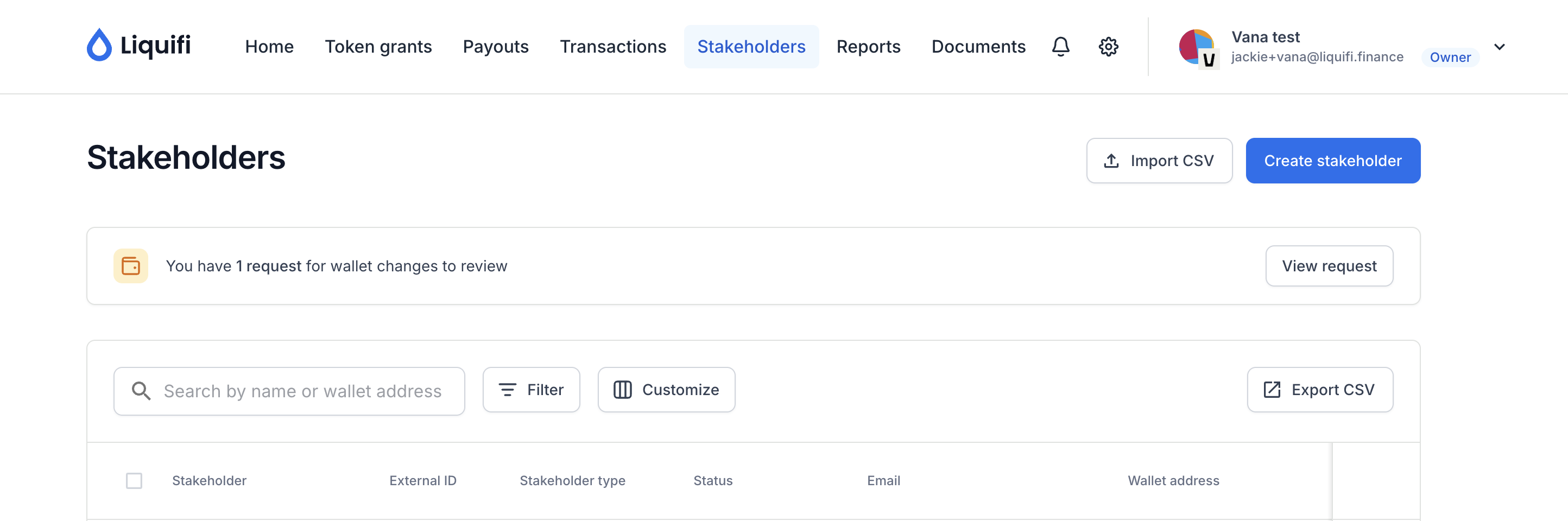
Stakeholders page: Go to the Stakeholders page. A banner will appear at the top of the page highlighting any wallet address change requests that need review.
Steps to approve or reject a wallet address change request:
Log in to Liquifi
Open the request:
From the email, click View request on Liquifi
From the app, click the 🔔 bell icon to view your Activity feed or go to the Stakeholders page and select the request
From the Activity feed:
From the Stakeholders page:
Review the request details, which includes the current and new wallet addresses
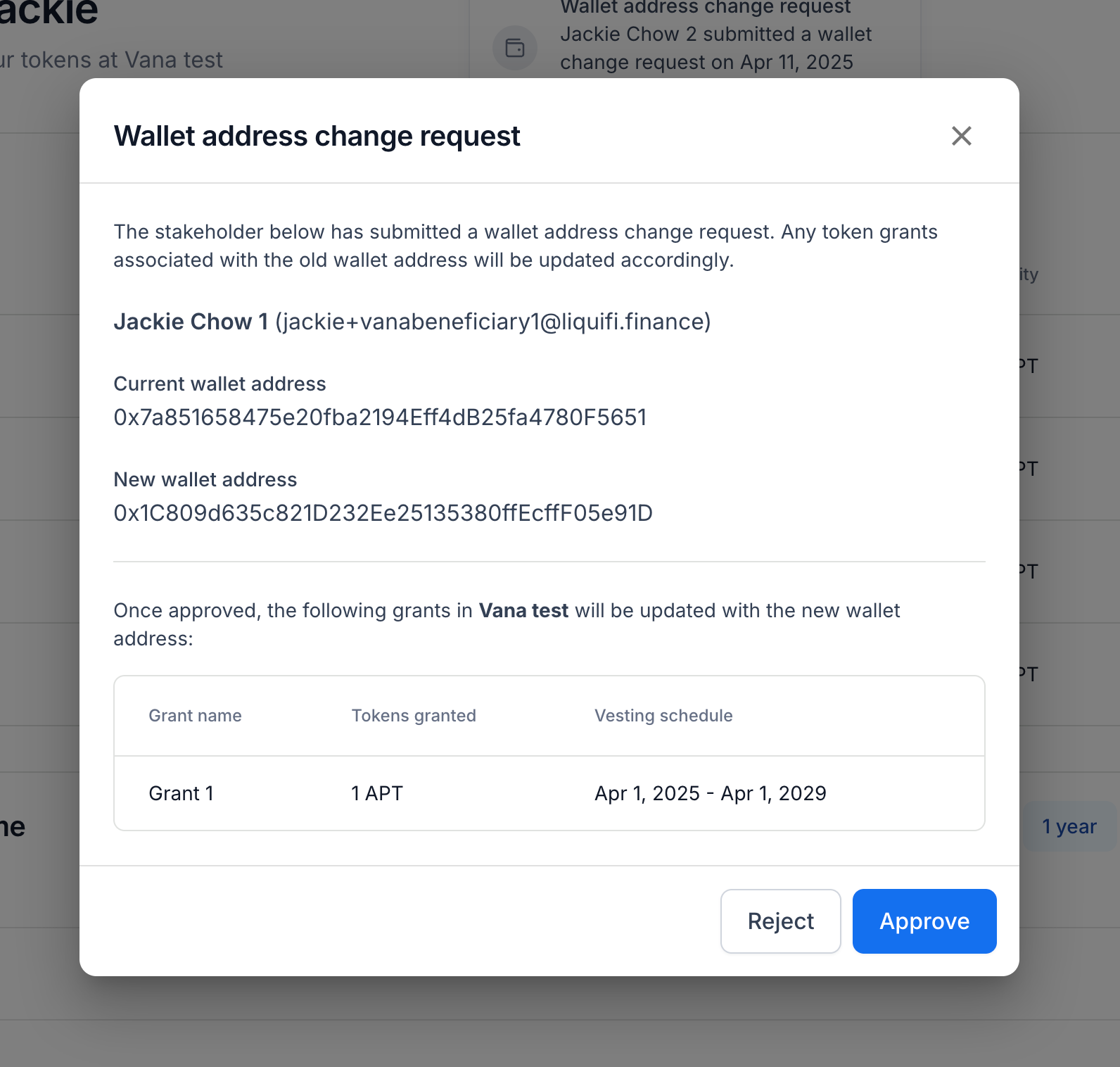
Click Approve or Reject to respond to the request
If approved, the stakeholder will receive an email confirmation, and their new wallet address will become available for use in Liquifi.
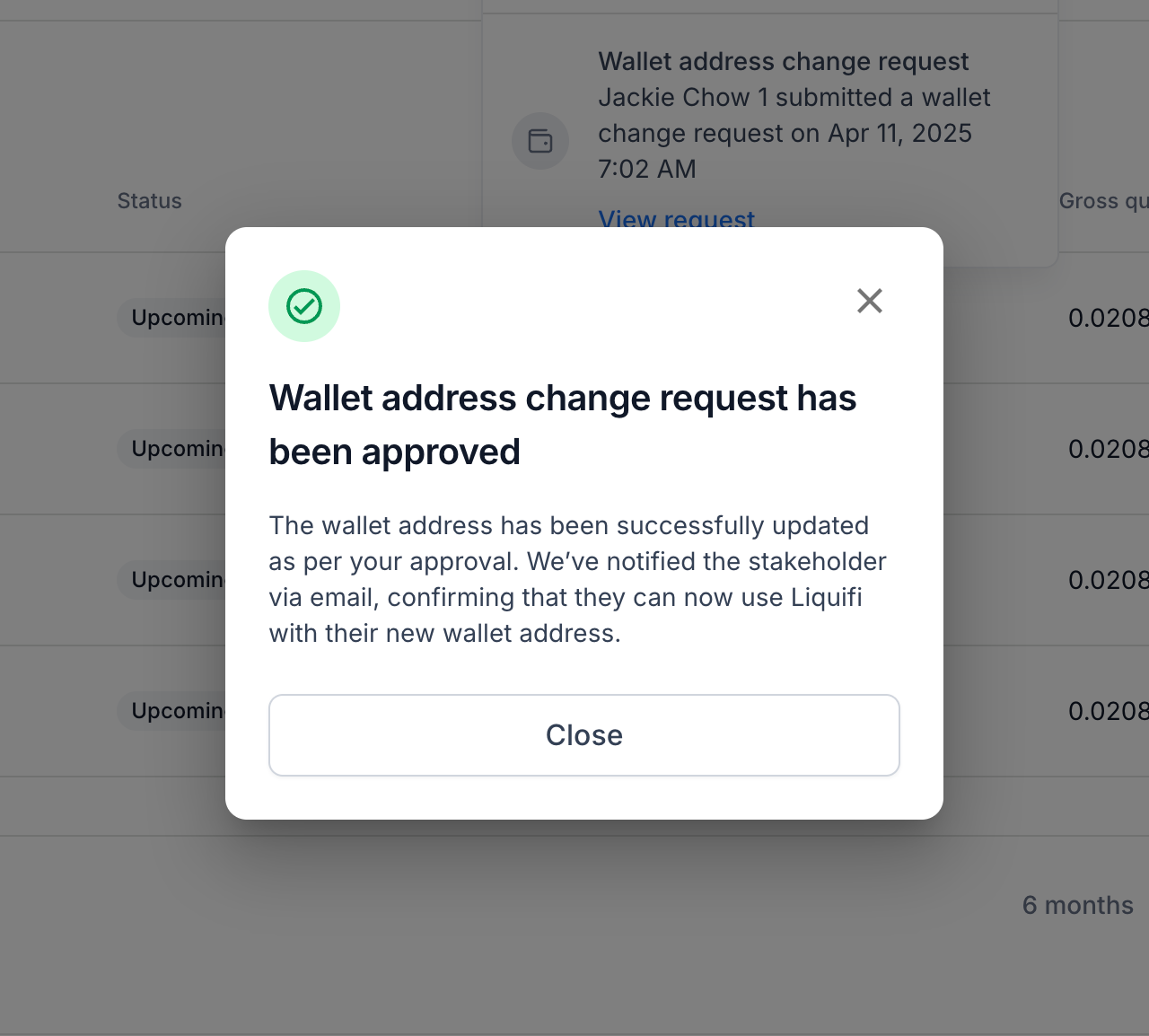
Stakeholder approval email: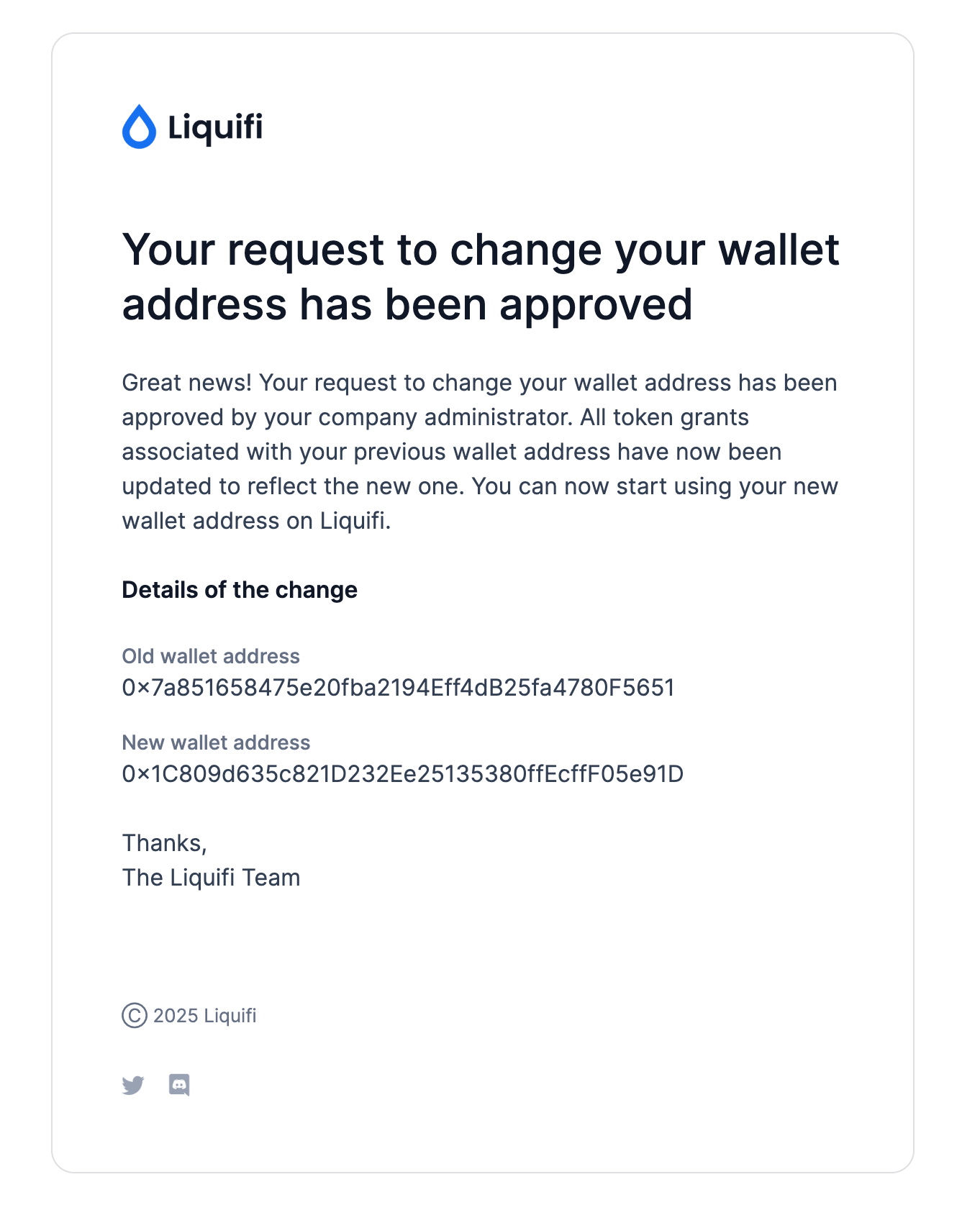
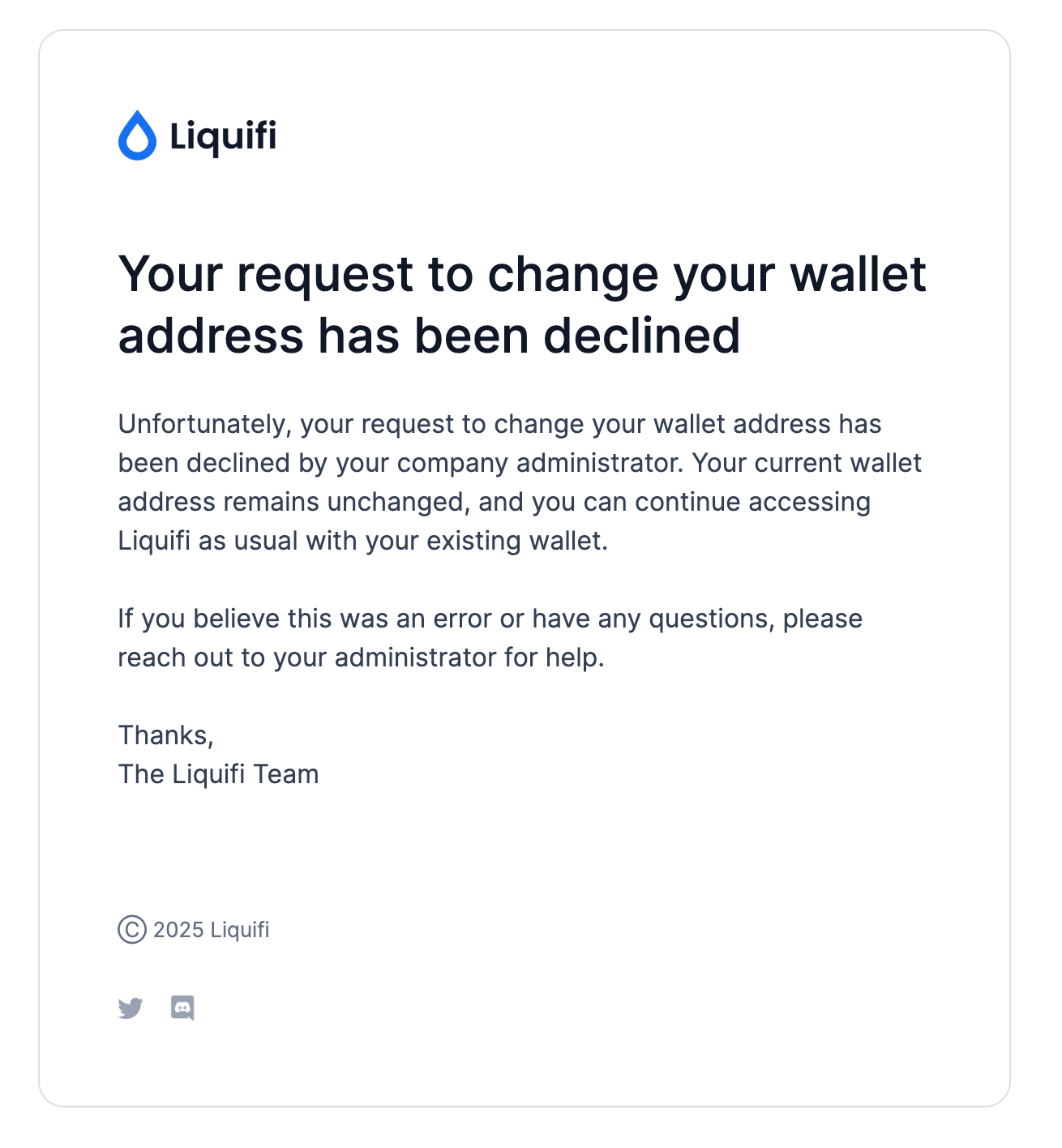
If rejected, the stakeholder will also receive an email confirmation and the new wallet address will not be available for use. They will continue using their current wallet address, and the request status will update in the Activity feed.
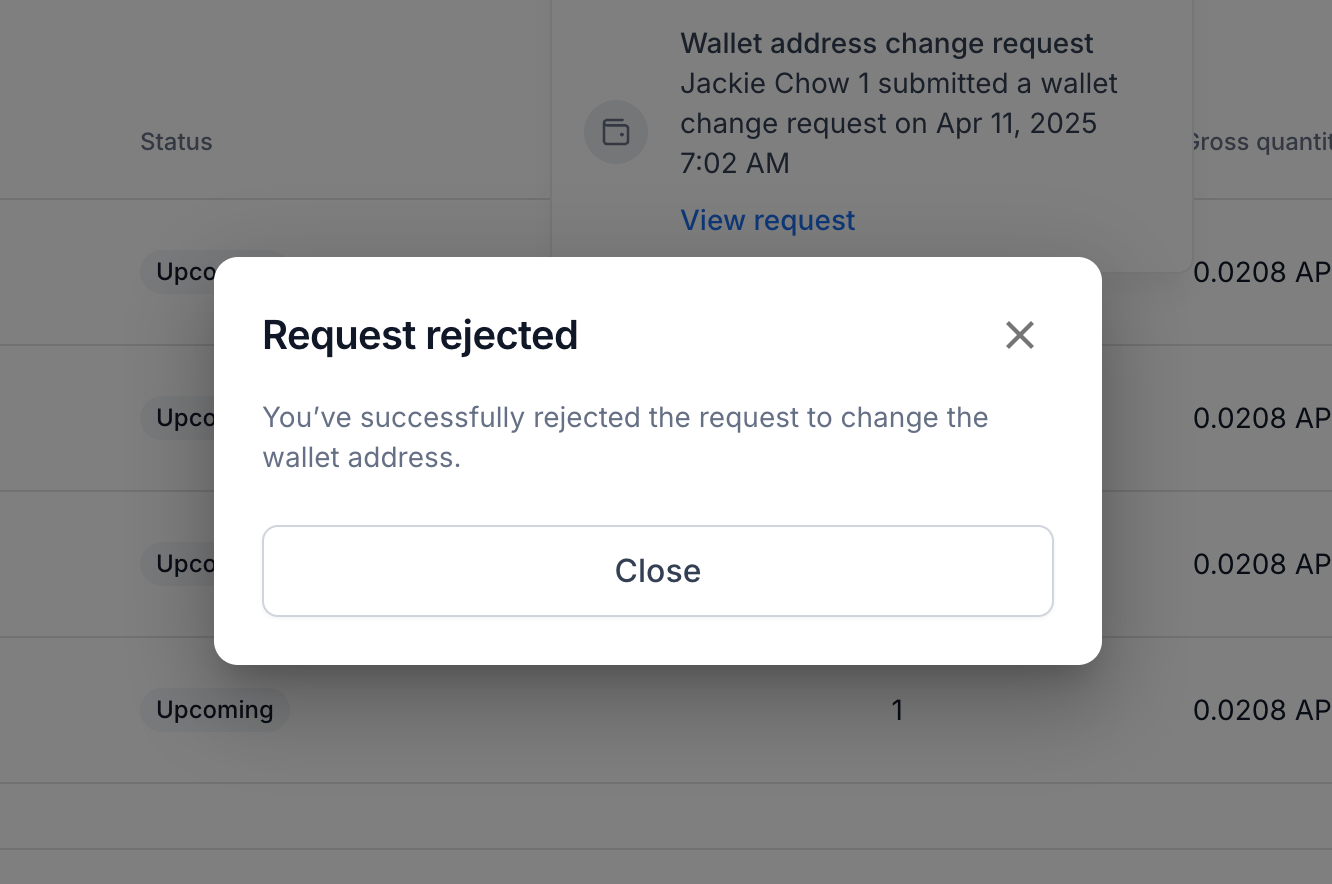
Stakeholder rejection email: