Verify a stakeholder's wallet using a test transaction
Last updated: September 26, 2024
Liquifi's wallet verification feature allows you to send a test transaction to a stakeholder to confirm their wallet address is correct. Your stakeholder will then be prompted to log in and verify their wallet address via email.
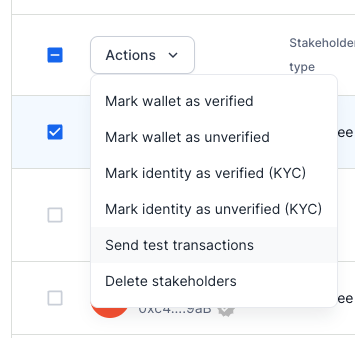
For the best experience for your stakeholder, include their email address in their stakeholder profile before initiating this verification process. If your stakeholder does not have an email address registered before you complete these verification steps, you will need to manually mark their wallet as verified after they notify you they have received the test transaction amount. You can see where to manually mark as verified in the Actions dropdown in Step 3 below.
Log in to Liquifi
Navigate to your Stakeholders page.
Select the stakeholder(s) you want to send test transactions to.
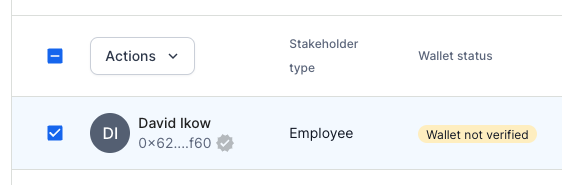
Click the
Actionsdropdown and select "Send test transactions"
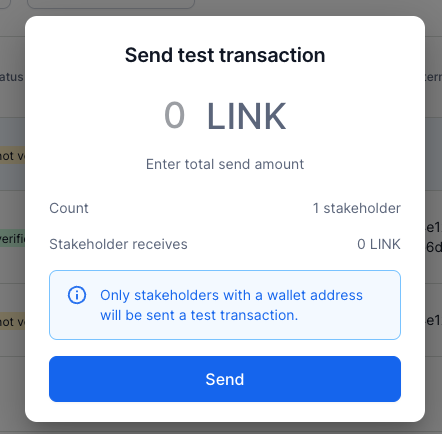
Enter a unique test transaction amount in the pop-up modal.
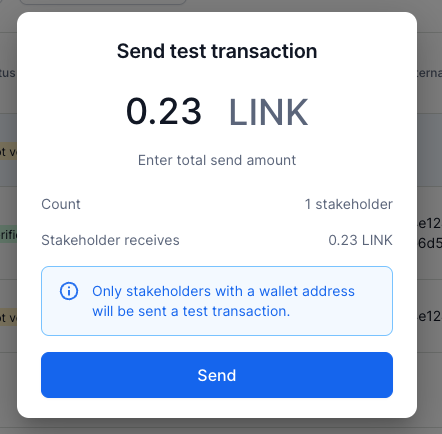
Click
Sendto initiate the on-chain transaction. Once you see the prompt in the screenshot below, you'll need to approve the transaction through your wallet extension or device (e.g., Metamask, Ledger, etc).
Test transaction tokens are sourced from the Liquifi account owner wallet (i.e., not the Liquifi account's escrow balance). Please ensure you have sufficient tokens in your account owner wallet to send the total test transaction amount you've defined.
Metamask, Rabby, or other Externally Owned Account (EOA): If a Liquifi account is owned by a single wallet address from a wallet provider, the source of the test tokens will be that same wallet.
Gnosis/Safe: If a Liquifi account is owned by a Gnosis/Safe, the source of the test tokens will be the Safe (i.e., not a signer wallet).
Fireblocks: If a Liquifi account is owned by a Fireblocks vault, the source of the test tokens will be the corresponding Fireblocks vault.
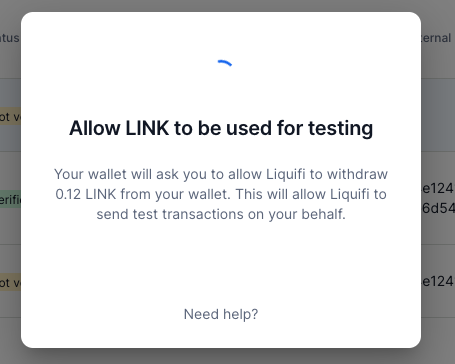
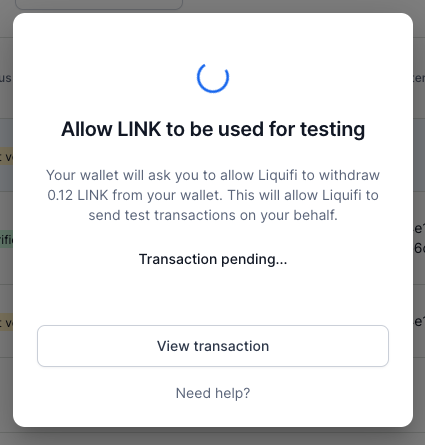
After you approve the transaction, you'll see the
Transaction pendingmessage shown below.
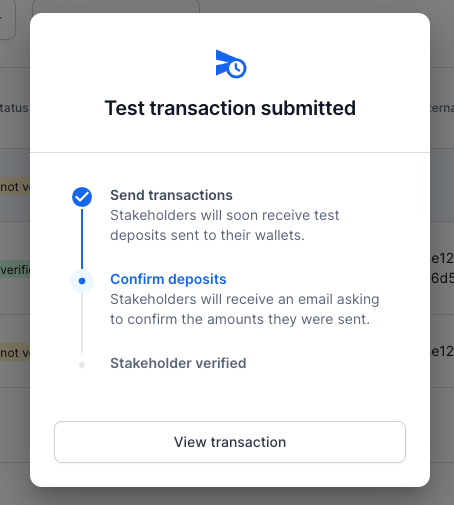
When the transaction signature process is complete, you'll see the following message.
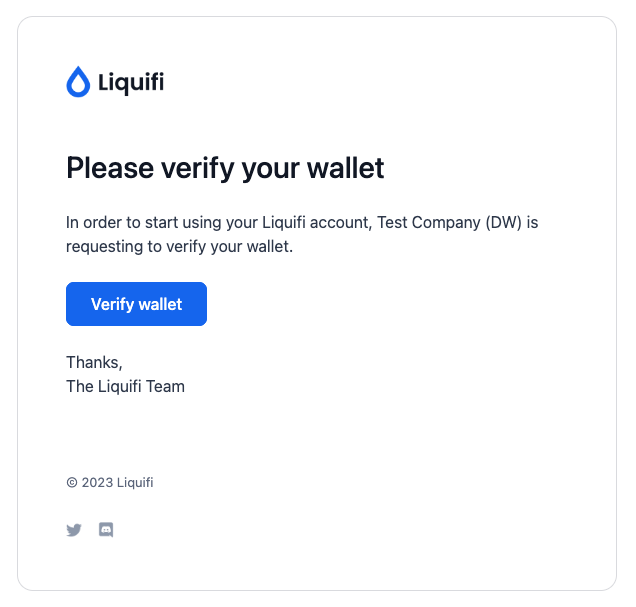
Your stakeholder will then receive the following email to complete the verification process and click
Verify wallet.
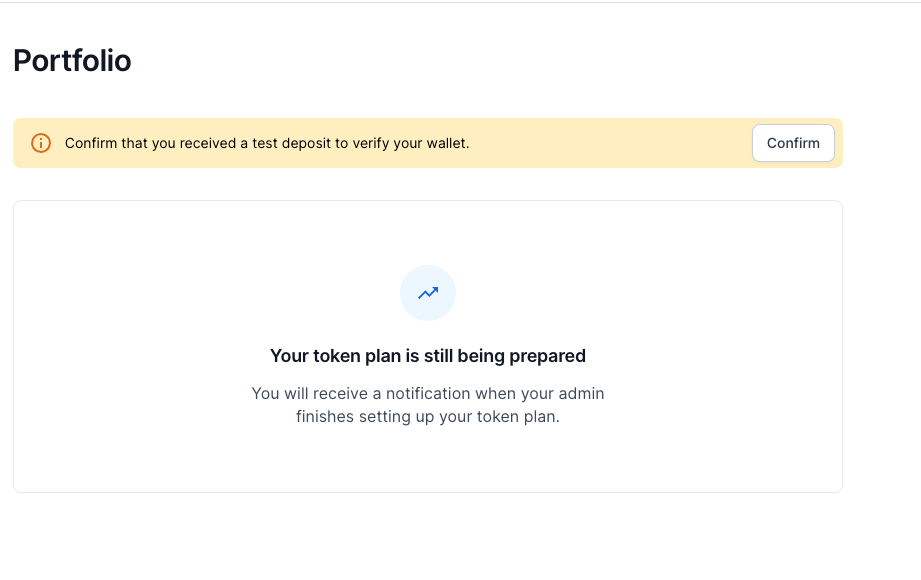
After logging into Liquifi with the wallet address you registered for them, your stakeholder will be prompted to confirm their wallet from their Portfolio view.
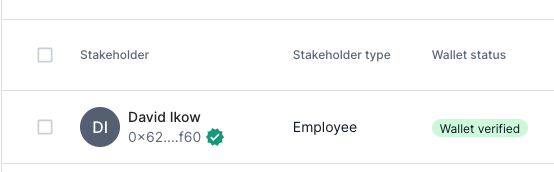
After your stakeholder confirms their wallet, you'll see a green check mark next to their wallet address in your Stakeholder page with a
Wallet verifiedmessage. The verification process is then complete!
If you need immediate assistance, please contact our support team directly at support@liquifi.finance
If you don't see what you're looking for in our support documentation, you can request a resource to be made by our support team using this form.