Connect your payroll software
Last updated: September 18, 2024
Navigate to your Settings page.
Click
Integrationsfrom the left-side menu.
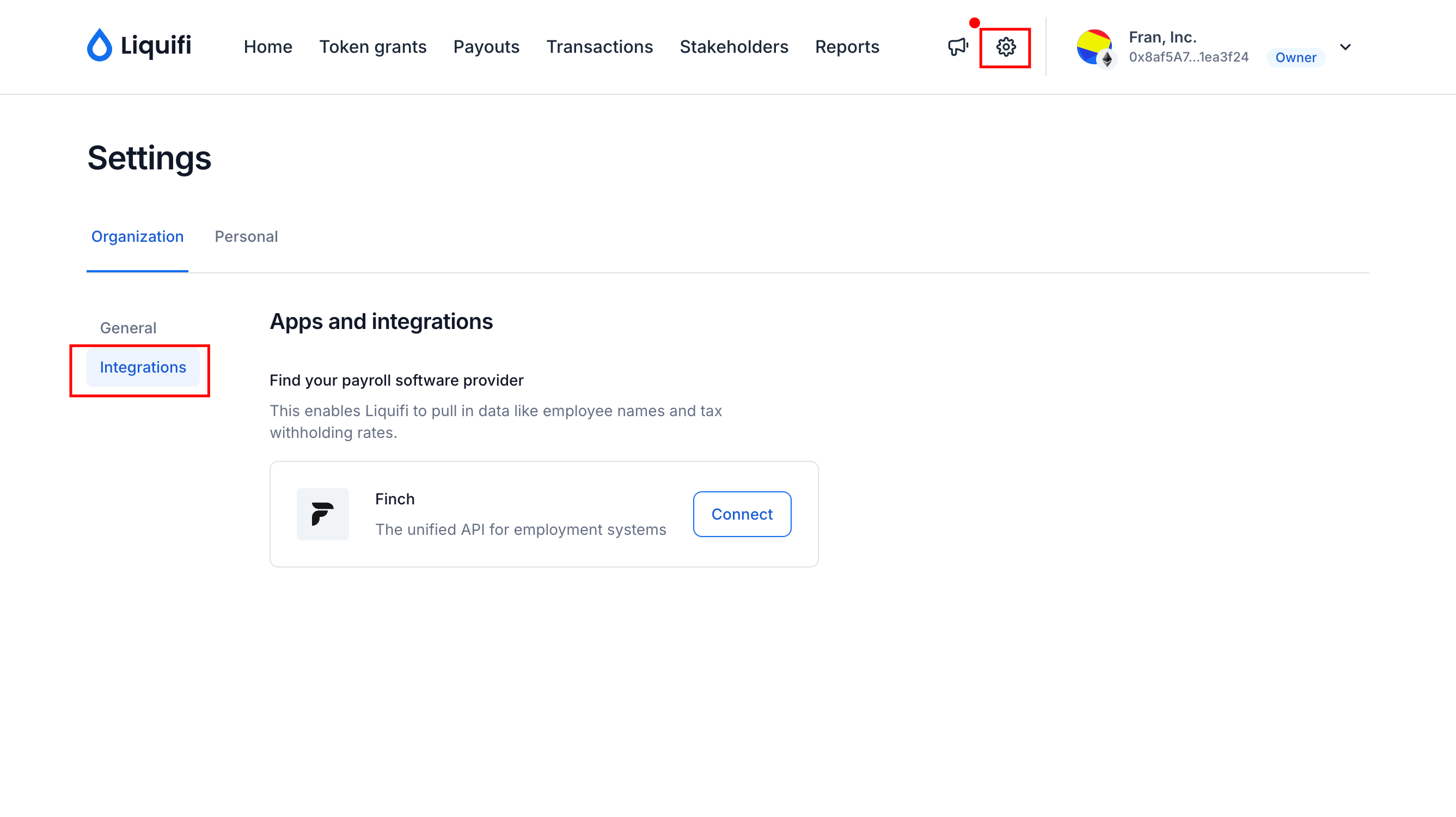
Click
Connectnext to Finch.A screen for Finch will pop up within your browser window. Click
Continuetwice.
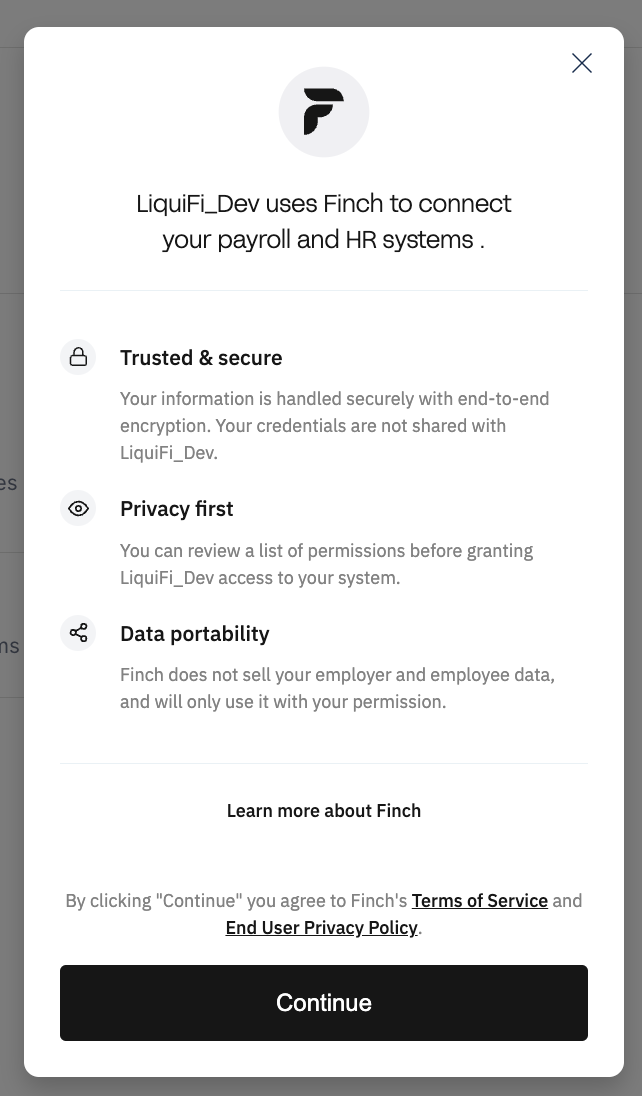
Search for your payroll software provider. For this example, we'll use Justworks.
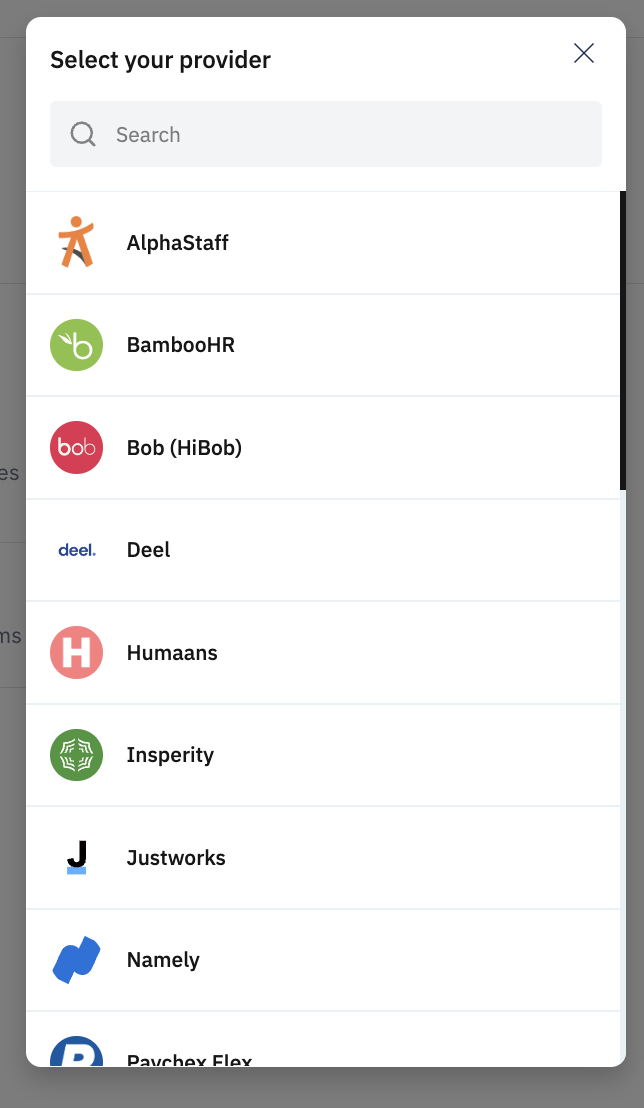
Enter your login credentials to your payroll provider.
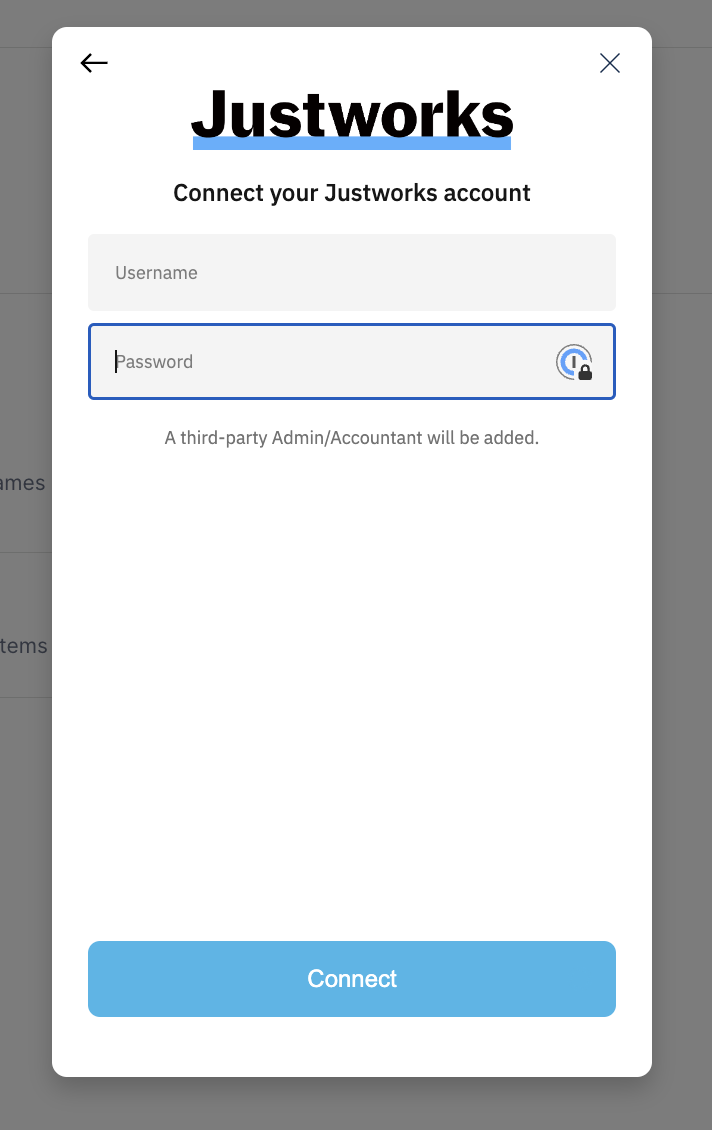
Click
Connectto initiate your login. Depending on your account settings with your payroll provider, you may have to complete multi-factor authentication (MFA) in addition to providing your account credentials.Once you complete the integration, you should see your payroll software connected in the the
Integrationssection of the Settings page.
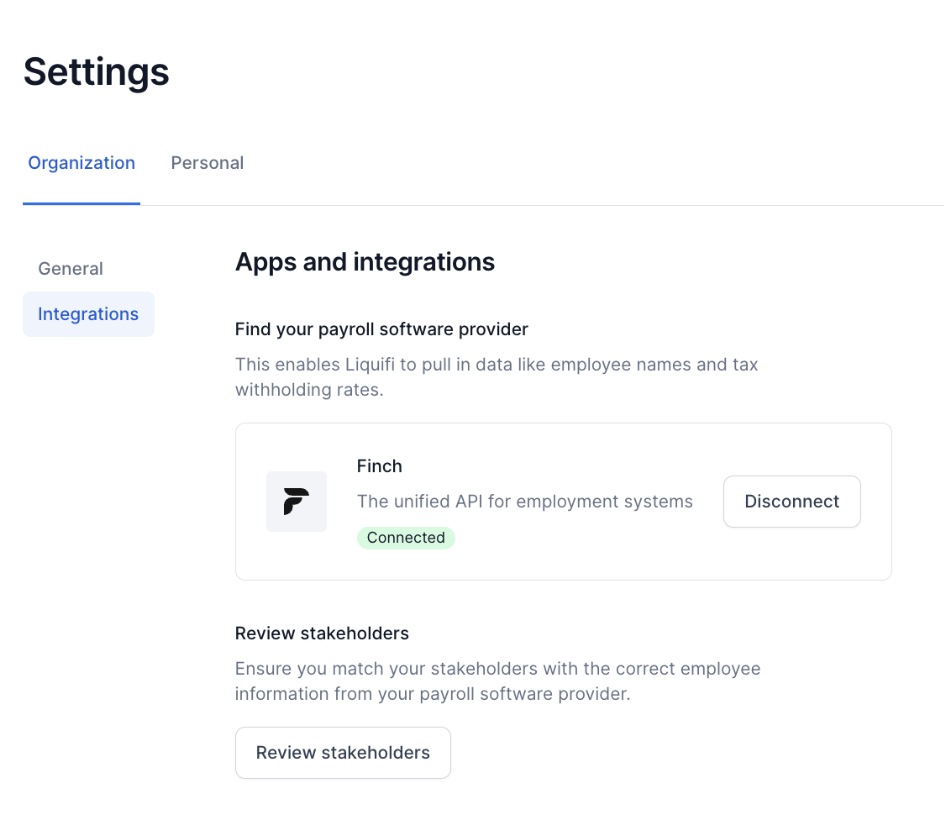
After confirming your payroll software is
Connected, clickReview stakeholdersto map your organization's contributor profiles in your payroll software to their Liquifi stakeholder profiles.
.png?alt=media&token=3c55a1f9-045d-4399-b2e5-2015d256569d)
Map your stakeholders within the pop-up menu and
Saveto record your selections.
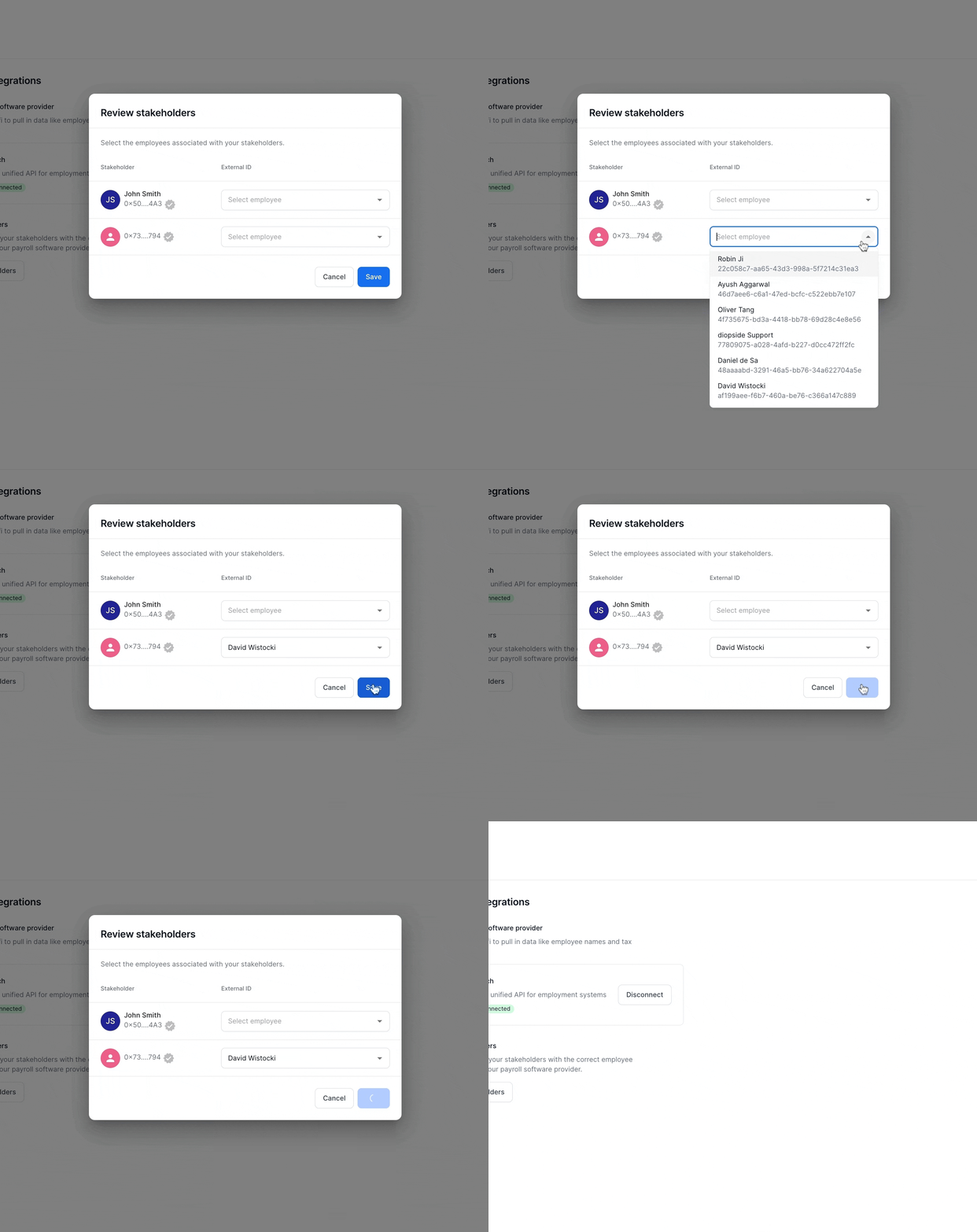
Your Liquifi stakeholders will now be mapped to their profiles in your payroll software!
If you need immediate assistance, please contact our support team directly at support@liquifi.finance
If you don't see what you're looking for in our support documentation, you can request a resource to be made by our support team using this form.